 ThingzSafe
Android
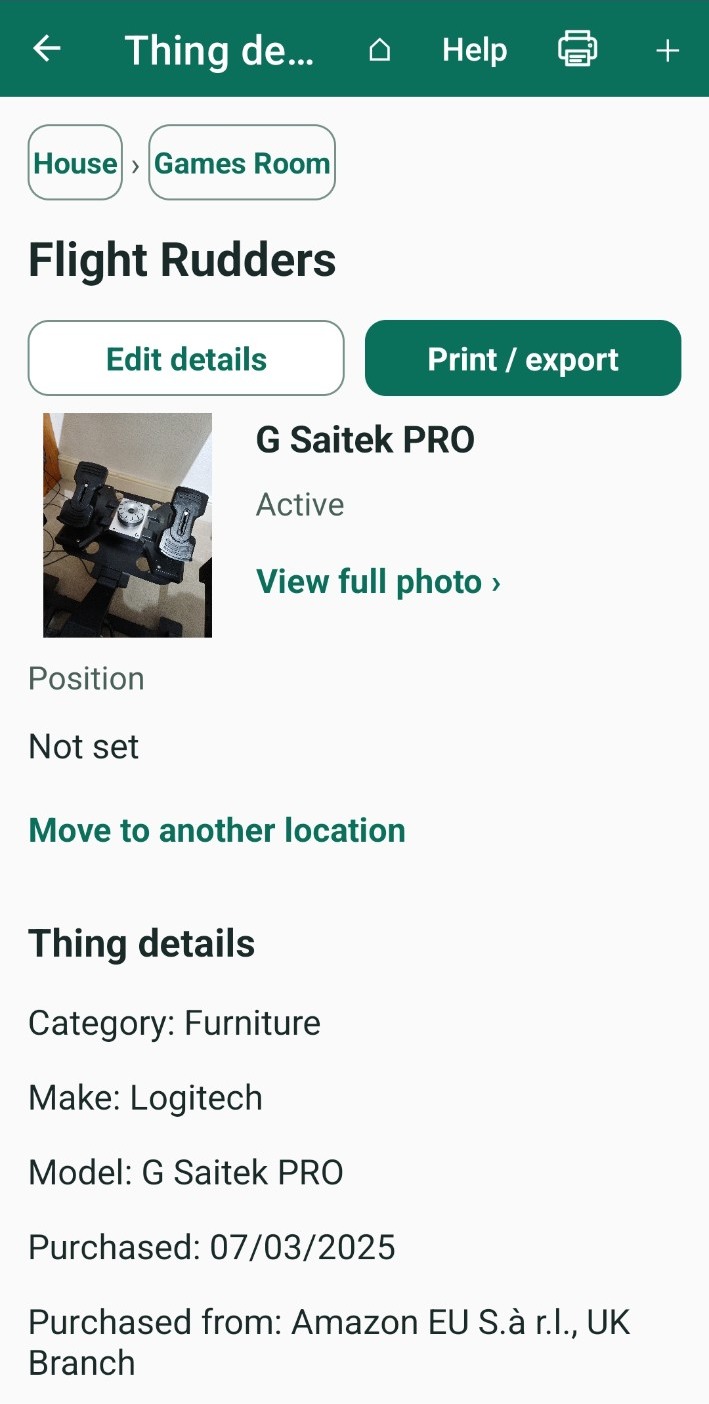
Add and edit a Thing
Record an item, its location and useful details.
Where to start
Android: Home + Scan or add a Thing + Add a Thing manually
You can also open a Site or an Area and tap + Add Thing here or + Add Thing manually.
What is a Thing?
A Thing is any item you want to keep track of, such as a car, computer, cupboard or bookcase. Each Thing holds its location, photos, documents and history together.
Add a Thing
- Choose the Site, and the Area if you use them.
- Type a name, and choose a Category.
- Fill in the details you know. You do not need to complete everything. See the list below.
- Check Status. It starts as Active, which is right for most things.
- Tick Needs review if you want to finish the details later. The Thing is saved and added to your Review queue.
- Tap Save.
Good to know: Tap Cancel to throw away your changes. On screens with a house icon, the house saves your changes and takes you to Home.
Details you can add
- Quantity: how many you have.
- Position: exactly where it is, such as "top shelf". Type anything you like.
- Make / manufacturer, Model and Size / pack size: for example 400 g, 1 litre or 6 pack.
- Serial No. / Barcode / ISBN: tap Scan barcode / ISBN to fill it in by scanning.
- Purchased from, Purchase date, Purchase price and current value: see Values and warranty below.
- Website URL and Notes: anything else worth keeping.
Good to know: Prices are for one item. For several items, ThingzSafe multiplies by the quantity to give the total.
What the Status means
- Active: you own it and have it.
- On loan: you still own it, but someone else has it until it is returned. See Loans and rentals.
- Sold or Disposed: these record what finally happened to it. The Thing stops appearing in your inventory lists and searches. You can note who bought it and for how much, or where it was taken. See Sale and disposal tracking.
Scan a barcode
Tap Scan barcode / ISBN if the item has a barcode. ThingzSafe checks your own inventory and an online database of barcoded products, such as groceries, to suggest details.
Plan: On Household and Pro, ThingzSafe also checks the barcode catalogue, which holds barcodes that are not in the main online database.
Add more of something you already own
If you scan or enter a code for something you already have, ThingzSafe shows it with its quantity and asks what to do. Choose one:
- Increase existing quantity: you have another identical one. For example, a drill with a quantity of 2 means you have two drills.
- Open existing Thing: look at the Thing you already have.
- Create separate Thing: record it as its own Thing instead.
You can also add more at any time:
- Open the Thing.
- Tap Increase quantity · optional labels.
- Enter the number in Quantity to add.
- Check the result shown. For example, if you have 2 drills and add 1, the result is 3.
- Tap Add Things.
Good to know: Any details you change here apply to every unit of that Thing, unless you tick Add as a separate entry. Tick Print labels for added units to print labels for only the items you just added.
Values and warranty
- Enter Purchase price and the current value for one item. ThingzSafe works out the total from the quantity.
- To get an idea of what something is worth now, tap Search online for a current value. It opens a web search using the Make and Model you entered. It does not fill in a price for you, so type in the value you decide on.
Plan: Online price lookup is available on Household and Pro.
To add a warranty:
- Choose the purchase date first.
- Open the Warranty / guarantee ends calendar. It opens one year after your purchase date, so you can adjust from there.
- Pick the end date, then tap Save. ThingzSafe creates a reminder in your calendar, or updates the existing one.
Edit a Thing
- Open the Thing from your list.
- Tap Edit details.
- Change any of the details.
- Tap Save.
Good to know: To change the quantity quickly, use + Increase and − Decrease on the Thing. To move it, tap Move to another location. See Move or split stock.
Delete a Thing
- If the Thing still has Contents, move or delete those first. If it is on loan, return the loan first.
- Open the Thing.
- Scroll to the bottom and tap DELETE.
- Confirm. This cannot be undone.
What happens next: Reminders and events linked to the Thing are removed too. In a household, everyone else's phone updates the next time it syncs.
Delete a photo or file
- Open the Thing and tap Photos & files.
- Tap the three-dot menu beside the photo or document, then choose Delete.
- Confirm.
What happens next: The file is removed from the Thing and from this phone. In a household, it is also removed from the shared cloud, and from other phones the next time they sync.
Good to know: Copies you saved outside the app, such as downloads, exports or backups, are not removed. Delete those yourself.
Need more help or have a suggestion? Contact us.
Find a replacement value with Pro
From Edit, use the AI button beside Current value (each). Check the title, category, make and model before generating. Review the source prices, accept a proposal and save the edit form. Read the AI valuation guide.