 ThingzSafe
Android
Calendar and repeating reminders
Schedule tasks and keep track of their completion.
Where to start
Android: Home Menu Organise Reminders
What reminders do
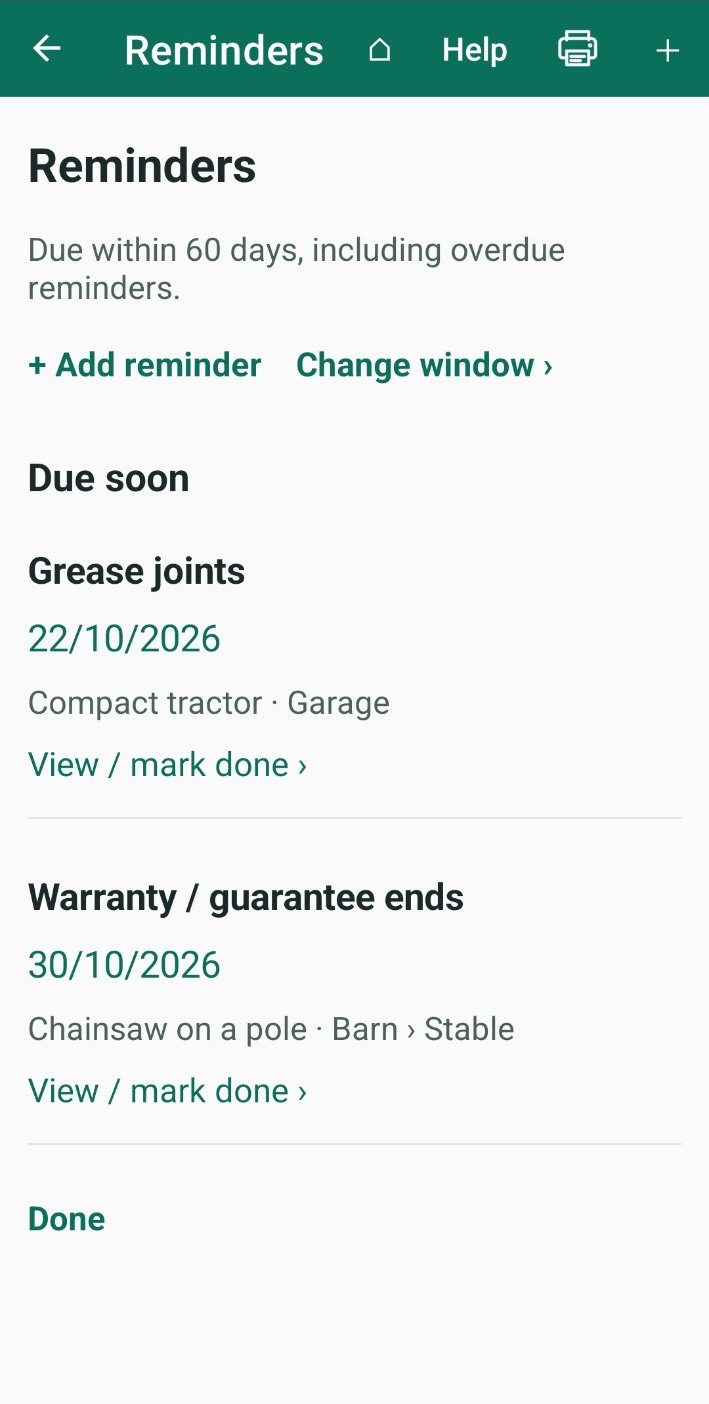
Reminders keep track of dates that matter, such as a service, an inspection or a warranty ending. Each one belongs to a Thing.
Add a reminder
- Go to Menu Organise Reminders.
- Tap + Add reminder and choose the Thing it is for.
- Type an Event name, for example "Annual service".
- Choose the Date. It can be in the past or the future.
- Add Details, a Repeat interval and a linked contact if you want to.
- Tap Save calendar event.
Good to know: You can add a reminder from a Thing too. It then shows all of that Thing's reminders, including finished ones.
Mark a reminder done
- Open the reminder.
- Tap Mark this occurrence done, then Mark done.
- If you like, tap Add log to record the work done and its cost in the Thing's Events. Or tap Later.
What happens next: A repeating reminder moves on to its next date. The finished one stays in the list of previous completions.
Change or delete a reminder
- Open the reminder and tap Edit calendar event to change it.
- To delete one, open it and delete it, then confirm.
- A warranty reminder is changed in the Thing instead: open the Thing, tap Edit details and change Warranty / guarantee ends.
- Tap View Thing to open the Thing a reminder belongs to.
Choose which reminders you see
The Reminders screen shows overdue reminders and ones due soon. Tap Change window to set how many days ahead to show, from 0 to 365.
Good to know: When you open the app, it warns you once about anything overdue or due within that window. You can also set the number in Menu App App settings.
Need more help or have a suggestion? Contact us.