 ThingzSafe
Android
Review your captures
Turn unfinished captures into useful inventory records.
Where to start
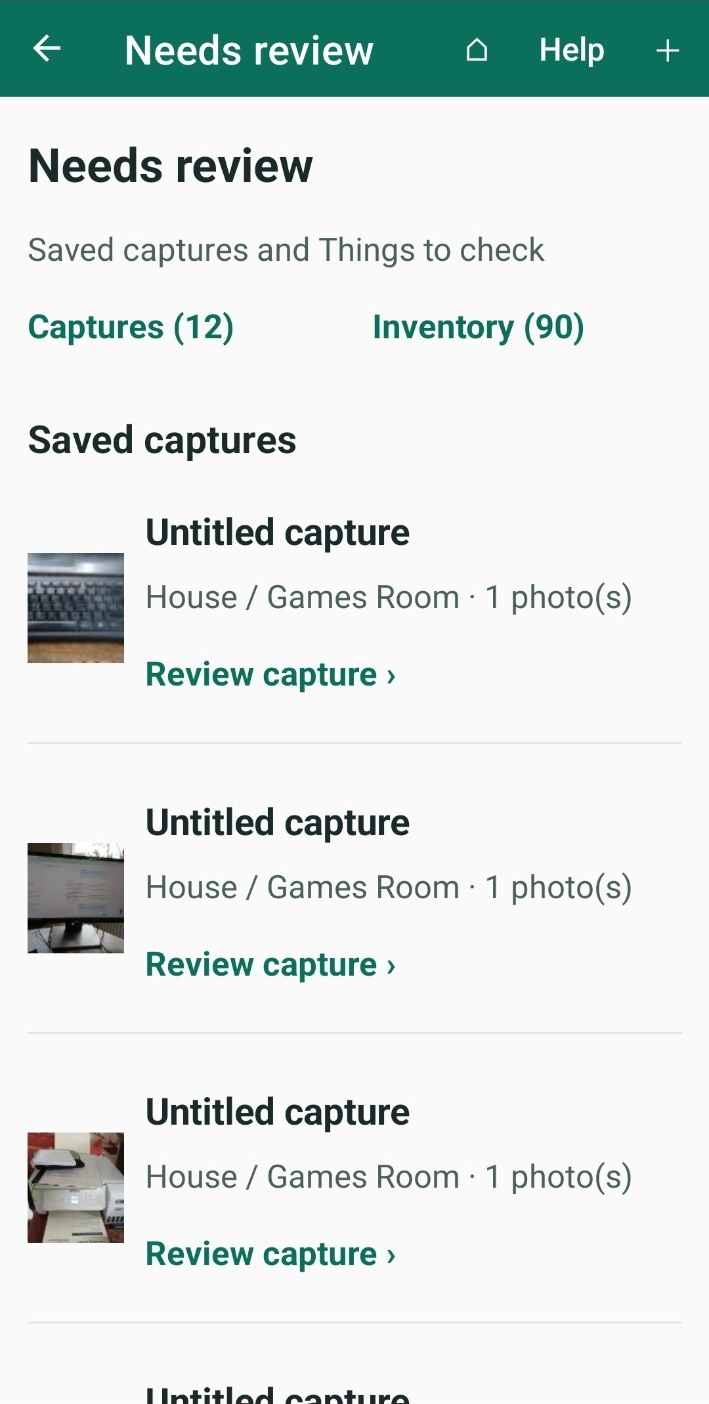
Android: Home Menu Organise Review queue
You can also tap Review now on Home.
What is the Review queue?
When you capture photos or add a list, ThingzSafe saves each item as a draft. The Review queue is where your drafts wait until you complete them and add them to your inventory.
The queue has two parts: Captures (your drafts) and Inventory (Things, Sites and Areas marked Needs review). Tap either name to jump to it.
Complete a draft
- Tap Review capture on a draft.
- Tap a photo to see it full screen. You can zoom in to check details.
- Choose the Main photo: the one that best shows the item.
- Type the name, and choose the Category and other details.
- Tap Save Thing.
Good to know: Tick Needs review to save your changes but keep the Thing in the Review queue.
Let the app read a barcode or label
- Find barcode in photos: ThingzSafe looks for a barcode in your photos, starting with the one marked Code. Check the number before you save.
- Read product label: ThingzSafe reads the text on a label photo and fills in empty fields for you. Check the suggestions before you save.
Plan: Reading product labels is available on Household and Pro.
Good to know: Mark a photo as Code for a barcode, or Label for a product label. Use a close, sharp photo for best results.
If you already have it
If a code matches a Thing you already own, ThingzSafe shows it. Choose Increase existing quantity, Open existing Thing or Create separate Thing.
Delete a draft
- Open the draft.
- Scroll to the bottom and tap DELETE.
- Confirm. The capture, with its photos and files, is deleted.
Need more help or have a suggestion? Contact us.