 ThingzSafe
Android
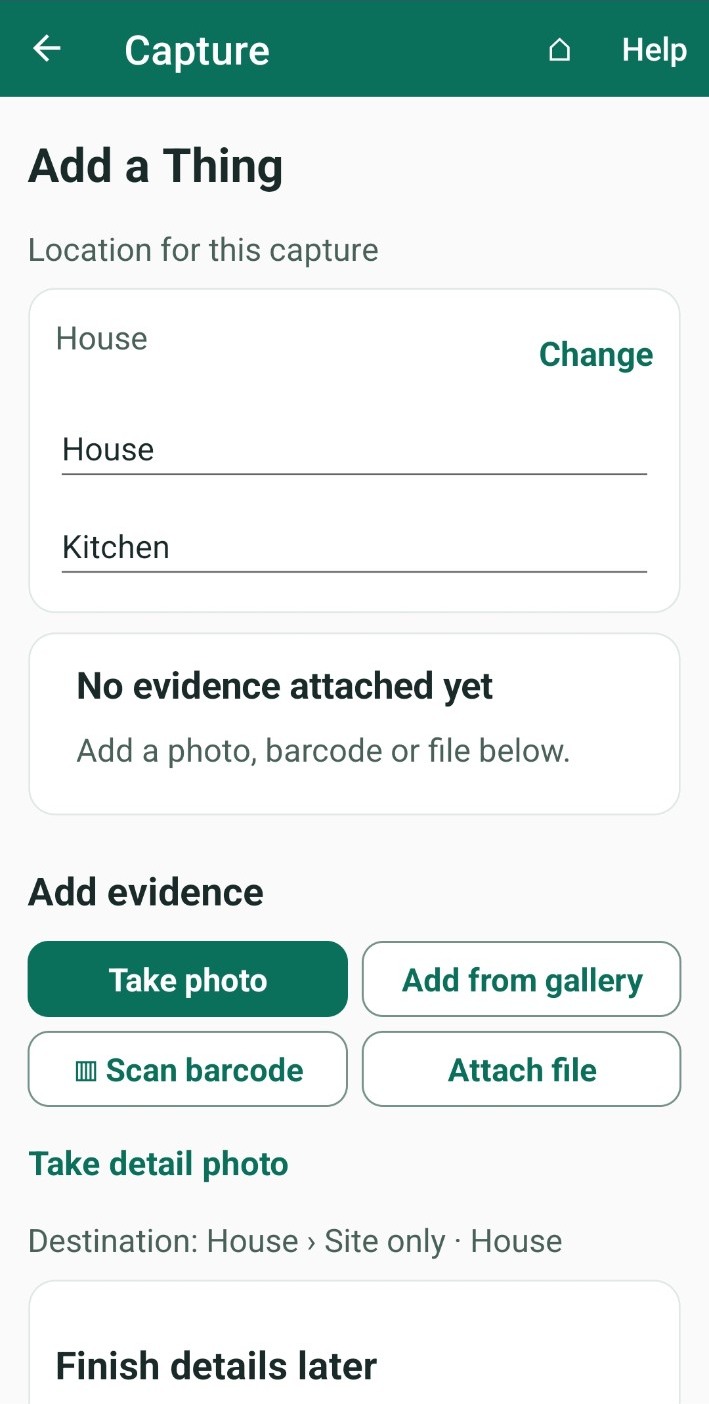
Quick one-photo capture
Capture one item at a time for later review.
Where to start
Android: Home + Scan or add a Thing 📷 Quick one-photo capture
You can also tap Quick one-photo capture here in a Site or Area.
Take a photo of one item
- Choose a Site and, if you use them, an Area.
- Choose a Photo shape. Do this before you take the photo. See below.
- Point the camera at the item so it fits inside the frame. The visible frame is what gets saved.
- Take the photo and check it. Tap Retake if you want another go.
- Save the photo:
- Save & add another: saves this photo and gets the camera ready for the next item.
- Save & done: saves this photo and finishes.
What happens next: Each photo is saved as a draft in the Review queue, where you add its name and details. See Review your captures.
Choose a photo shape
- Standard (4:3): the usual photo shape, good for most items.
- Square (1:1): a square photo.
- Wide (16:9): a wide frame, good for flat, wide items such as board games.
- Thin (16:4): a very narrow frame, good for slim items such as books and DVDs.
Good to know: The saved photo keeps the shape you chose and is never stretched.
More options
- Tap Scan barcode to read a barcode and look up the product details.
- Tap Take detail photo to add another photo of the same item.
- Tap Review queue to open the drafts you have saved.
Need more help or have a suggestion? Contact us.