 ThingzSafe
Android
Create or join a household
Share an inventory with your household across devices.
Where to start
Android: Home Menu Account Household cloud and sync
What is a household?
A household is the group of people (two or more) who share one inventory on their own phones. The person who pays for the plan owns the household and invites the others. People who are invited do not pay.
Create your household (owner)
- Go to Menu Account Household cloud and sync.
- Buy a Household or Pro plan in Google Play. See Plans, purchases and cancellation.
- When the payment is confirmed, tap Create my household.
- Sign in with the email address you want to use. Use the same one each time.
- When asked, choose whether to upload the inventory already on this phone.
- Keep the screen open until it says syncing has finished.
Good to know: If the purchase is cancelled or fails, your Free inventory stays safely on the phone. If setup is interrupted after paying, your purchase is safe. Check your connection and tap Retry household setup.
Invite someone (owner)
- In Household cloud and sync, find Your household.
- Tap Invite someone and enter the email address they will use to sign in.
- Tap Create invitation.
What happens next: ThingzSafe emails them an invitation. Tell them to look for it and to check their Spam or Junk folder. The code works for seven days and only with that email address. If it goes astray, cancel it and send a new one.
Join a household (invited person)
- Install ThingzSafe from Google Play.
- Open it. On the welcome screen tap JOIN A HOUSEHOLD, or finish setup without adding anything and go to Menu Account Household cloud and sync.
- Choose Join an existing household.
- Enter the Invited email address and the Invitation code from the email, then tap Validate invitation & join.
Good to know: Do not add Things or change the suggested Sites and Areas before you join. Joining replaces what is on this phone with the household's inventory. It does not combine them. Back up anything you need first. You do not need to buy a plan to join.
Check that everything is up to date
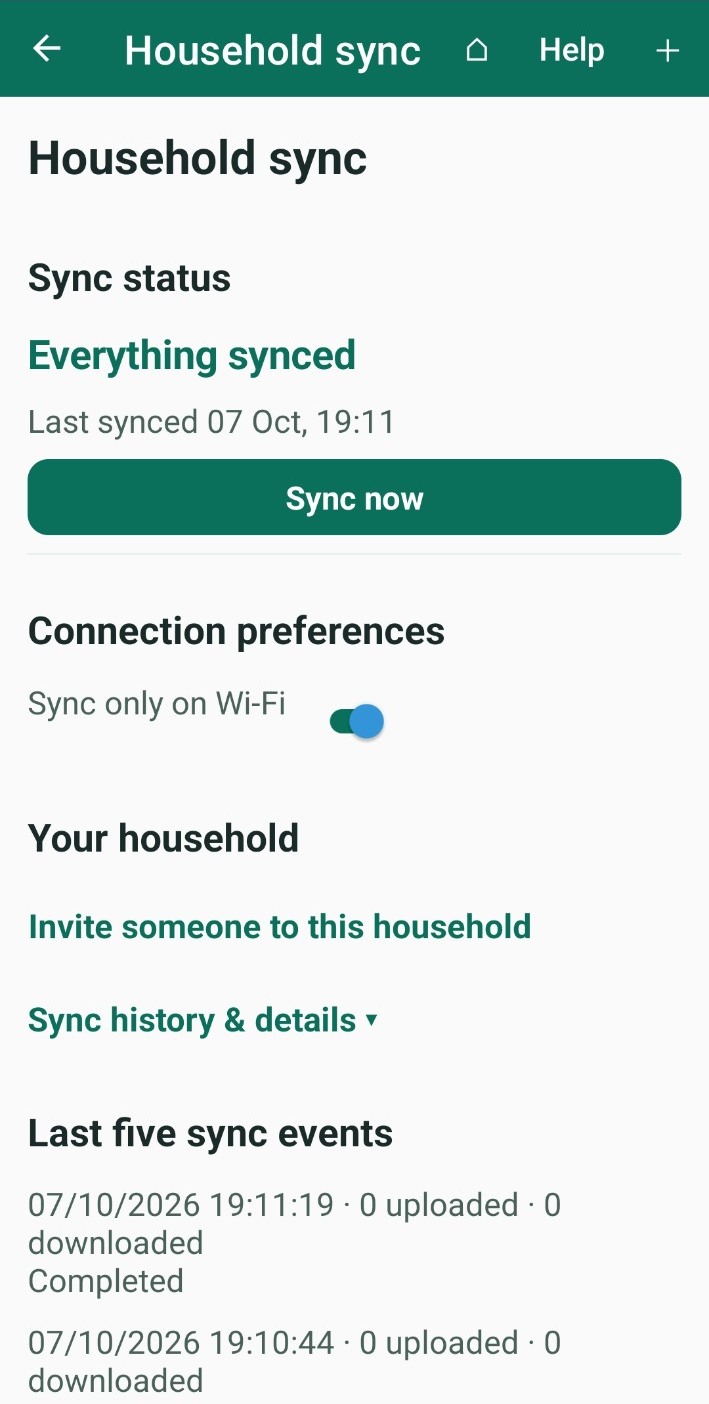
- Sync status shows whether the household is up to date, anything waiting, and the last five sync results.
- Tap Sync now to update straight away.
- Sync only on Wi-Fi is on by default. If there is no Wi-Fi, your changes wait and send later. Turn it off if you want to use mobile data.
- Changes you make offline are sent when the phone is back online.
Sign in to an existing account
Tap Sign in to existing account and use the email address you set up before. Signing in alone does not give you access to a household. You need a paid plan of your own, or an invitation.
Connect a new phone
Sign in with the same email address, then choose Restore / overwrite all from cloud. This replaces the inventory on that phone only. Back up anything you want to keep first. See Encrypted backup and restore.
Change your sign-in email
Your verified email address is what ties your account together. Before you change it, sign in with the current one and contact ThingzSafe support, so your account stays linked. Do not create a second account or accept a new invitation instead.
Good to know: If the invitation went to the wrong address and you have not joined yet, ask the owner to cancel it and send a new one.
If two people changed the same thing
Home shows Sync conflicts need review. Open it, and for each one choose Keep this phone's version or Use household version, then tap Confirm and Sync now.
Need more help or have a suggestion? Contact us.