 ThingzSafe
Android
Encrypted backup and restore
Keep a backup you can restore if needed.
Where to start
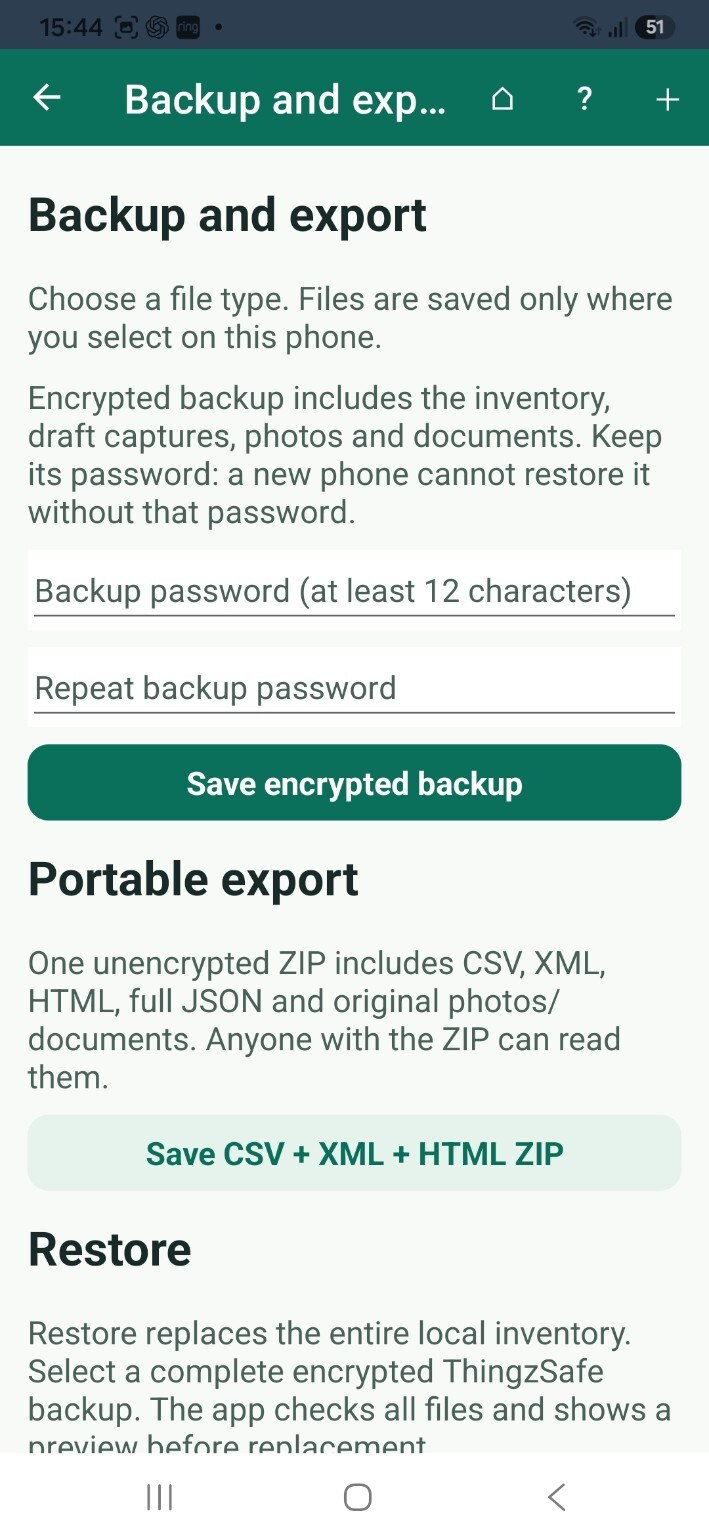
Android: Home Menu Account Backup, restore and export
Save a complete backup
- Go to Menu Account Backup, restore and export.
- Type a password of at least 12 characters, then type it again.
- Tap Save encrypted backup and choose where to save the file.
What happens next: You get a .tsbackup file with your inventory, drafts, photos and documents.
Good to know: Keep the file and its password somewhere safe. If you forget the password, the backup cannot be opened.
Restore a backup
- Type the backup's password.
- Tap Choose backup to restore and pick the .tsbackup file.
- Check the preview of what it contains.
- Type RESTORE when asked, to confirm.
Good to know: Restoring replaces everything on this phone and disconnects it from household sync. It does not change the household's cloud copy. If the password is wrong, nothing changes. Check the spelling and capital letters, and try again.
Fix a phone that is linked to a household
Use Recover phone from household cloud instead. It downloads the household's current inventory and replaces this phone's copy only once everything has arrived. First sync and sort out any conflicts. If it is interrupted, it carries on next time.
Export to read or move your data
Save CSV + XML + HTML ZIP creates a file that is not encrypted, with your data in readable formats and the original photos. It is handy for moving data or reading it elsewhere.
Good to know: Anyone who has that ZIP file can read it. Store it carefully.
Need more help or have a suggestion? Contact us.