 ThingzSafe
Android
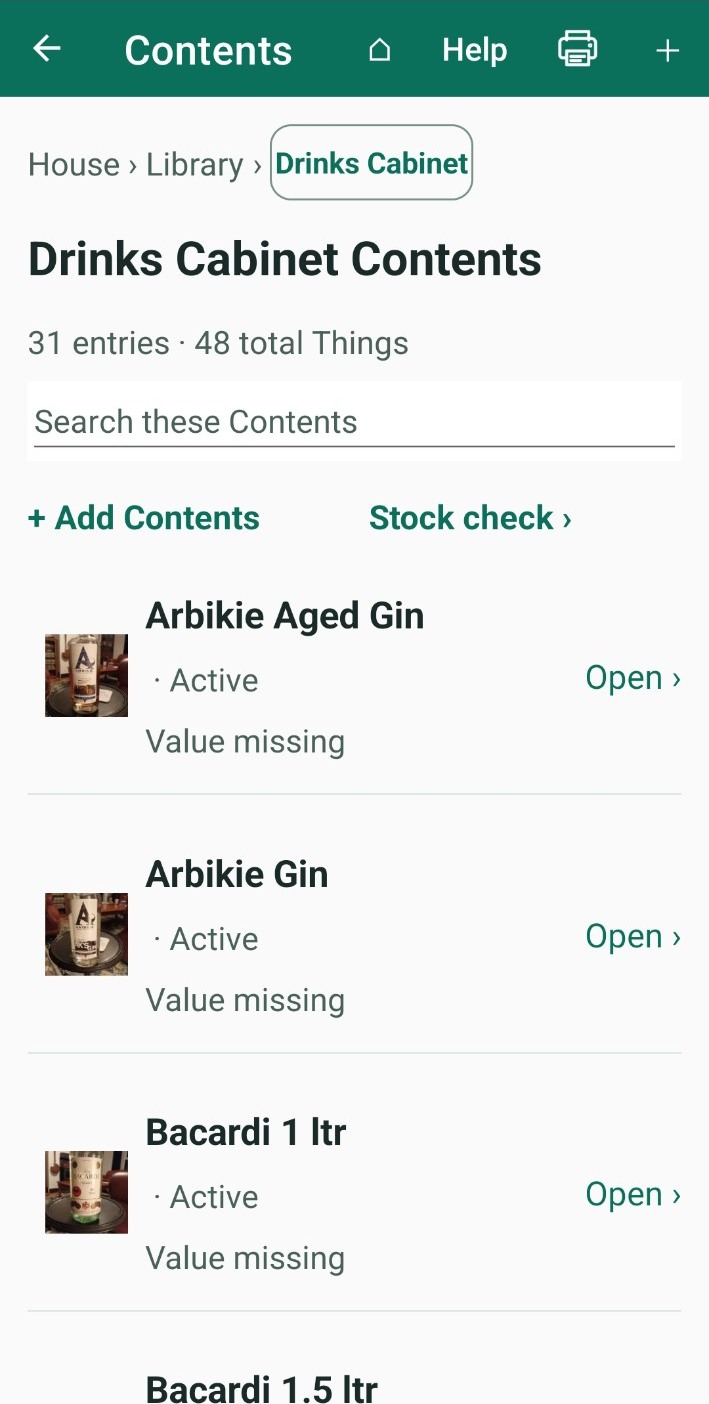
Contents and quick entry
Track items or supplies stored inside another item.
Where to start
Android: Home Site Area (optional) Thing Contents
What are Contents?
Contents are the individual items stored inside a Thing, such as books on a shelf, tins in a cupboard, building supplies in a workshop store, or CDs in a CD case.
Before you start
A Thing only has a Contents section if its Category allows it. To turn it on, edit the Category and tick Things in this category can hold Contents.
Add Contents
Choose the way that suits you:
- + Add Contents: opens a full form for one entry.
- Quick Entry list (under More actions): type several names and quantities in a list.
- Quick barcode scan (under More actions): scan barcodes to add or count. See Scan Contents barcodes.
- Photograph Content or Quick one-photo capture Contents (under More actions): take photos and finish the details later in the Review queue.
Good to know: Adding more of something you already have? Use Add quantity. See Add stock and quantities.
Use Quick Entry
- Under More actions, tap Quick Entry list.
- Type each name and quantity in a row. A new blank row appears when you need it.
- Use the small + and − to change a quantity. Tap the bin to remove a saved row. You are asked to confirm first.
- Tap Save entries.
Find or change Contents
- Type in Search these Contents to filter the list.
- Tap an entry to edit it or move it. See Move or split stock.
- Tap Stock check to count what is really there. See Check actual quantities.
- Tap the printer icon to print the Contents list. For labels, see Individual Content labels.
Delete a Content
- Open the parent Thing and tap Contents.
- Open the Content.
- Scroll to the bottom and tap DELETE.
- Confirm. This cannot be undone.
Good to know: You can also delete a saved row in Quick Entry. A Content that has Contents or Parts of its own must have those removed first.
What happens next: In a household, the deletion appears on other phones the next time they sync.
Need more help or have a suggestion? Contact us.