 ThingzSafe
Android and web portal
Categories, colours and icons
Group similar items so they are easier to recognise.
Where to start
Android: Home Menu Organise Manage Categories
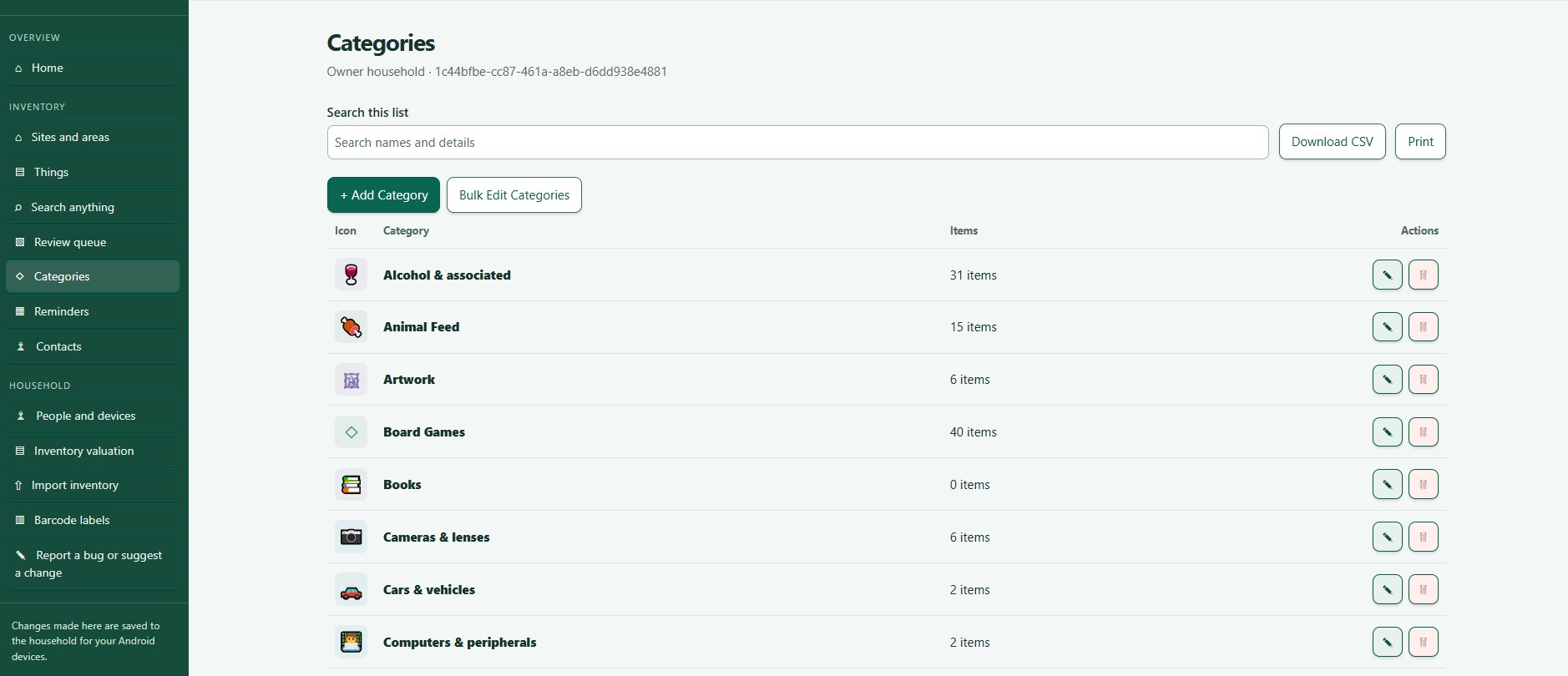
Web portal: Categories
What are Categories?
- A Category groups similar Things, such as tools, furniture or livestock.
- A Category says what an item is. Sites and Areas say where it is.
Suggestions when you first set up
During setup, ThingzSafe suggests Categories to get you started, such as Books, Garden tools, Furniture, Kitchen appliances or Food.
- Keep the ones you need.
- Tap the pencil to change a suggestion, or the red bin to remove one.
- Tap + Add category to add your own.
- Your changes are saved when you tap Finish setup and open Home.
You can add or edit Categories at any time after setup.
Create or edit a Category
- Go to Menu Organise Manage Categories.
- Tap + Add category, or tap the pencil beside an existing Category.
- Enter a name, and a description if you like.
- Choose an icon. Use your keyboard to type one emoji, or pick one of the bundled icons.
- Choose a colour. Pick a swatch, or type a six-digit colour code such as #4C9875.
- Tick Things in this category can hold Contents if items are stored inside them, such as a freezer. Tick Things in this category can have Parts if they have fitted pieces, such as a car.
- Tap Save.
What happens next: Choose this Category whenever you add or edit a Thing.
Valuation and risk options
- Contents add to the Thing's total value: tick this if the value of what is inside should count towards the Thing.
- High risk: tick this to include these Things when you search for high-risk items.
- Not included in normal valuation: tick this for Things insured separately, such as cars.
- Minimum value after depreciation: the lowest estimated value, as a percentage of the purchase price. See Inventory valuation.
Good to know
- You cannot delete a Category while any Thing is using it. Change those Things to another Category first.
Custom fields (Pro)
With a Pro plan, tap Customise fields to rename, hide or reorder fields, or to add your own. See Pro category fields and prompts.
Pro category fields and prompts
Need more help or have a suggestion? Contact us.