 ThingzSafe
Android
Check actual quantities
Compare saved quantities with what is actually there.
Where to start
Android: Home Site Area (optional) Thing Contents Stock check
What a stock check does
A stock check compares the quantities saved in ThingzSafe with what is really there. You can count by hand or by scanning barcodes. When you finish, ThingzSafe updates the quantities that changed and records the check date.
Count what is actually there
First choose how to count, under Counting mode:
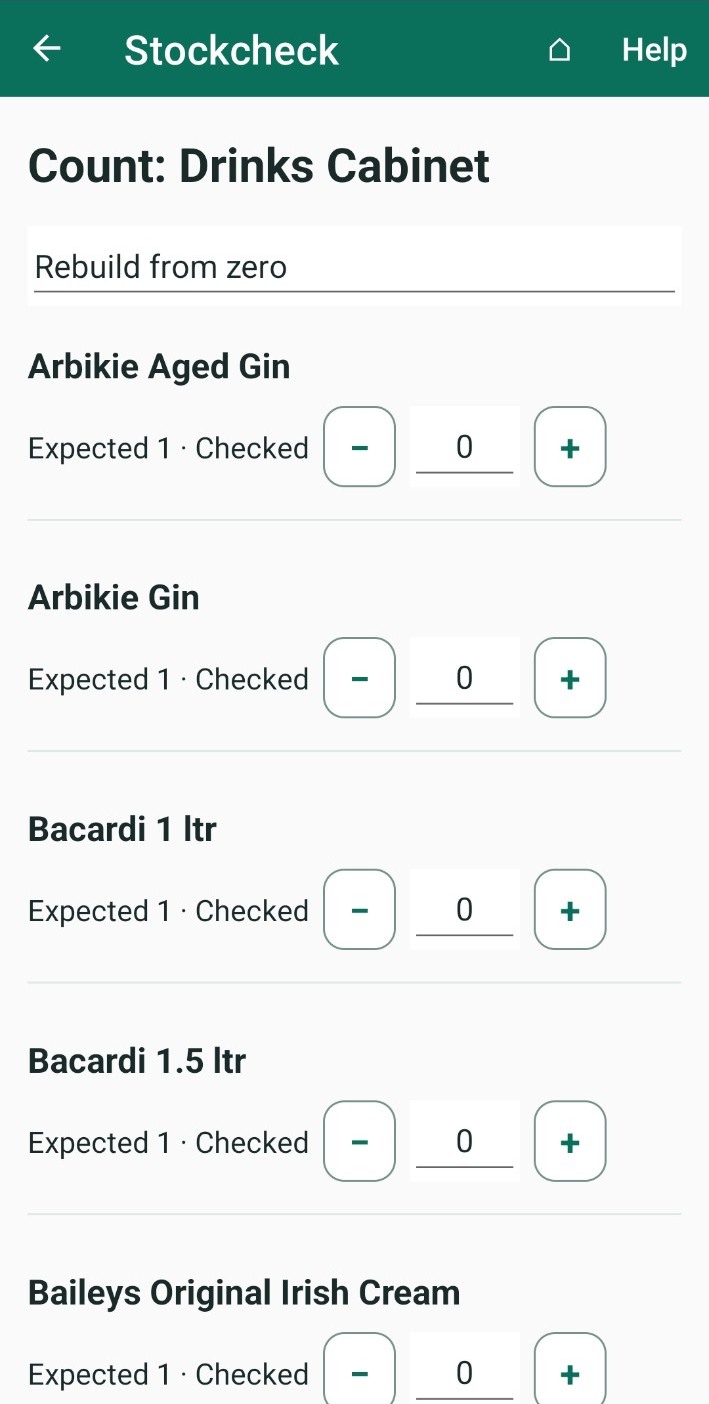
- Rebuild from zero: every quantity starts at 0. Add each item as you count it, using the + button or by scanning. Use this for a full recount.
- Confirm expected stock: every quantity starts at the saved amount. Use this to check what you have, and change only what is wrong.
- Open the Thing, tap Contents, then tap Stock check.
- Choose a counting mode and count each item.
- Tap Review differences.
- Check the list of changes.
- Tap Apply.
What happens next: Quantities that changed are updated, and the check date is saved. The stock check is recorded even if nothing changed.
Count by scanning
- Tap Quick barcode scan.
- Scan each item. A known barcode adds one to its count. Tap Scan next barcode to keep going.
- Tap Return to actuals when you want to close the scanner. Your counts stay on screen.
- If a barcode is not in this stock check, ThingzSafe asks for a description. Enter one and tap Add, or tap Skip.
- Tap Review differences, then Apply.
Good to know
- For everyday arrivals and use, add or remove stock instead. A stock check is for correcting the balance.
- To check a whole room at once, see Check an entire Area.
Need more help or have a suggestion? Contact us.