 ThingzSafe
Android
Print barcode labels
Print identifiers to find your items by scanning.
Where to start
Android: Home Menu Reports Print barcode label sheet
You can also open a Thing and tap Labels, or find it in Menu App App settings.
Why print labels?
Some things have no barcode, such as jars of homemade jam. Print your own barcode labels and stick them on. You can then scan them later, instead of remembering what you called each one.
Print labels for several items
- Go to Menu Reports Print barcode label sheet.
- Tap Choose entries and tick the Things, Parts or Contents to print.
- In Paper / label template, choose plain A4 or one of the label sheets listed.
- If you are using a sheet that is partly used, set Start on row and Start on column to the first free label.
- Add a Batch (optional) number or date if you like. Tap Use today's date for Batch to fill in today's date.
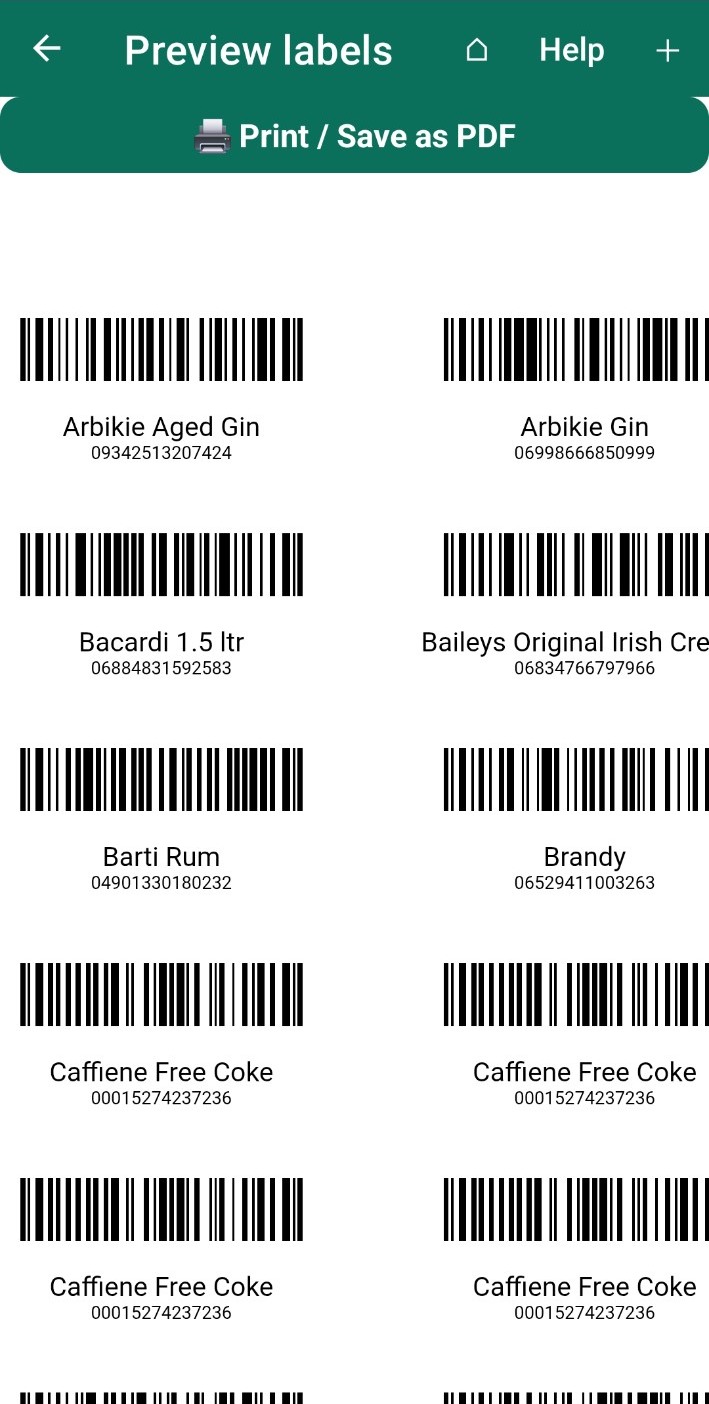
- Tap Preview selected labels, check them, then tap Print / Save as PDF.
Good to know: If you print the same Thing again, it gets the same barcode as before.
Print labels for one Thing
- Open the Thing and tap Labels.
- Enter how many identical labels you want.
- Choose the paper and starting position, then preview and print.
Good to know: Printing labels does not change the quantity you have.
Printing tips
- Choose the same paper size in your print settings as you chose in the app.
- Turn off scaling and extra margins, so the labels line up.
- Print a trial copy on plain paper first and hold it against your label sheet.
- You can print up to 500 labels at a time.
- The small Avery 5167 labels use a QR code instead of a barcode, because they are too small for one.
Plus and minus labels for Contents
Tick Also print + and − quantity labels for selected Contents to print labels that change the stock when you scan them from the Contents screen. See Scan Contents barcodes.
Need more help or have a suggestion? Contact us.