 ThingzSafe
Android
Events and receipts
Keep a dated history of maintenance and other work.
Where to start
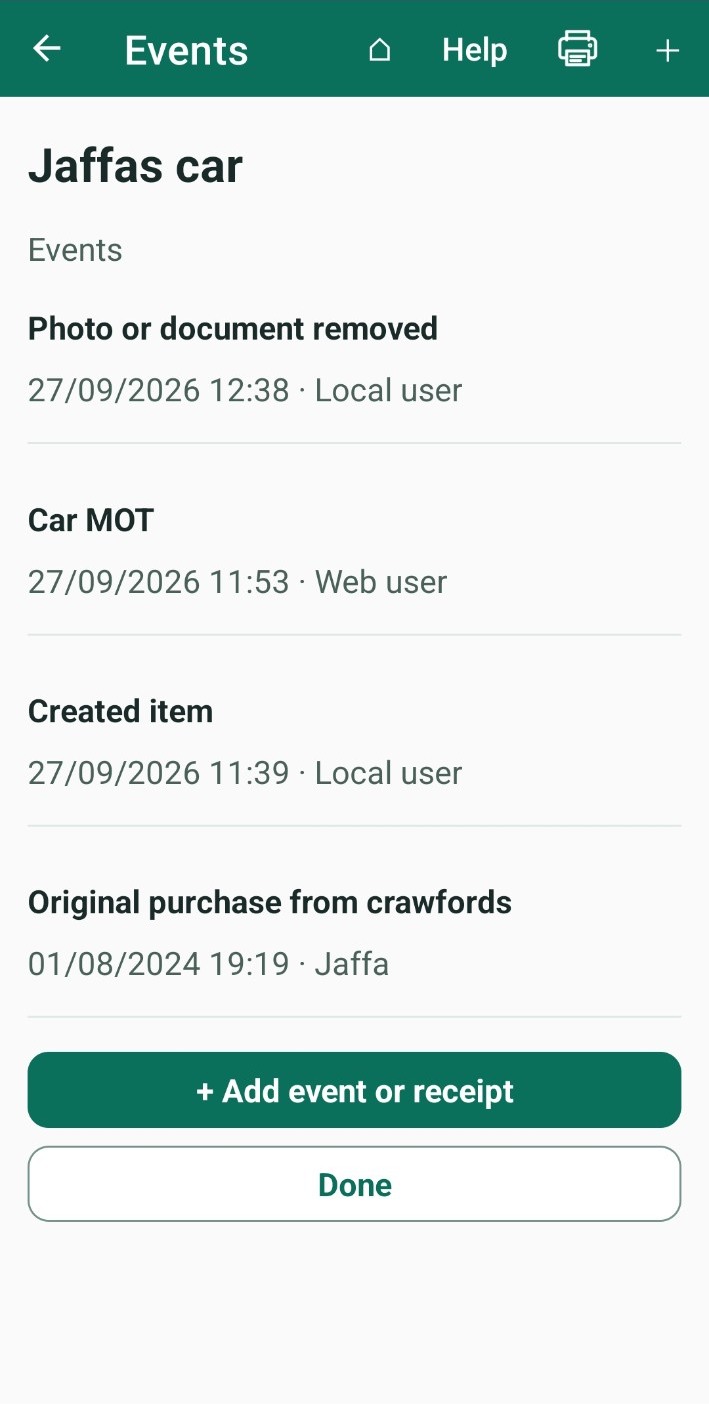
Android: Home Site Area (optional) Thing Events + Add event or receipt
What is the Events list?
Each Thing keeps a dated history. ThingzSafe adds entries by itself when you edit the Thing, change its quantity or move it. You can add your own too, such as a repair, a service or a receipt.
Add an event or receipt
- Open the Thing and tap Events.
- Tap + Add event or receipt.
- Check the date. It starts as today. Change it if the event happened earlier.
- In What happened?, describe it, for example "Annual service" or "Bought a new battery".
- Add a Contact if you like. Start typing a name to pick a saved contact, tap + Add a new contact, or leave a typed name as plain text.
- Add a photo or document if you have one: tap Photograph receipt or event, Choose existing photo or Choose document.
- Tap Save event.
Good to know: You need to describe what happened or attach a photo or file. Each file must be no larger than 20 MB. Tap Cancel to leave without saving.
Make it repeat as a reminder
Tick Repeat this event as a reminder to schedule the next one, for example another service in a year. It then appears in your Calendar and repeating reminders.
Look back at the history
Open the Thing and tap Events. Tap an event to see its photo, document and linked contacts. A document can be opened or downloaded.
Need more help or have a suggestion? Contact us.